Overview
Inline Agents turns "run this workflow" instructions in an Obsidian note into a button. Click it, and it fires Claude Code or OpenCode at the note, in a live terminal right underneath — or, if you'd rather not watch it work, quietly in the background with the result dropped straight into the note when it's done.
Built to replace plain-text "Run features/learning-artefacts/teacher-artefact-leveller.md" instructions scattered across a note system with something clickable.
Drop a fenced code block with the agent-button language tag anywhere in a note:
```agent-button
text: Draft this week's report
prompt: Draft a weekly report for {{file.basename}}, using the notes tagged #weekly-log from the last 7 days.
agent: ClaudeCode
model: myMainModel
showTerminal: true
completion: manual
```
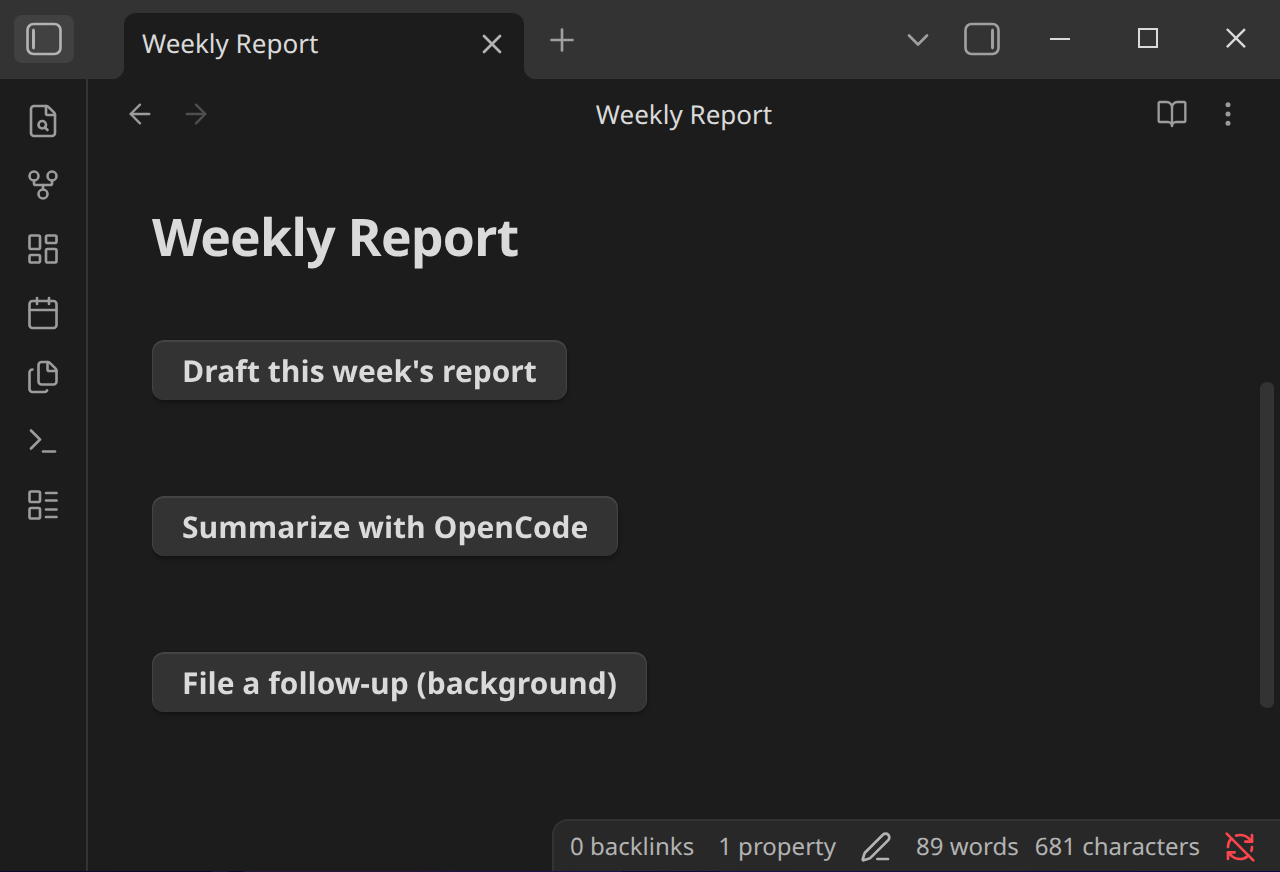
That's it — every field except text and prompt is optional. Click the button and you get a real terminal, right in the note:
What you could use it for
- A "Run sufficiency check" button under every artefact note, instead of remembering the exact command.
- A background summarizer that appends its findings to the bottom of a daily note and never opens a terminal you have to watch.
- Different buttons on the same note routed to different agents or different models — a fast local model for a quick pass, a bigger one for the real thing.
- Prompts that pull real context from the note — frontmatter status, tags, the vault name — instead of static text you have to edit by hand every time.
How it works
Each agent-button code block is its own self-contained widget, rendered via Obsidian's own registerMarkdownCodeBlockProcessor. Clicking the button:
- Renders the
prompt:template against a snapshot of the note (file path, frontmatter, tags, the vault, today's date — see Context and Templating). - Resolves which agent binary to run and, if a
model:line is set, which model to pass it — see Agents and Models. - Spawns the CLI behind a real PTY and feeds its output into a live xterm.js terminal in an accordion under the button — a real terminal, not a plain text log. Type into it exactly like a normal terminal whenever the agent isn't auto-approving.
- Once the process exits (or, in
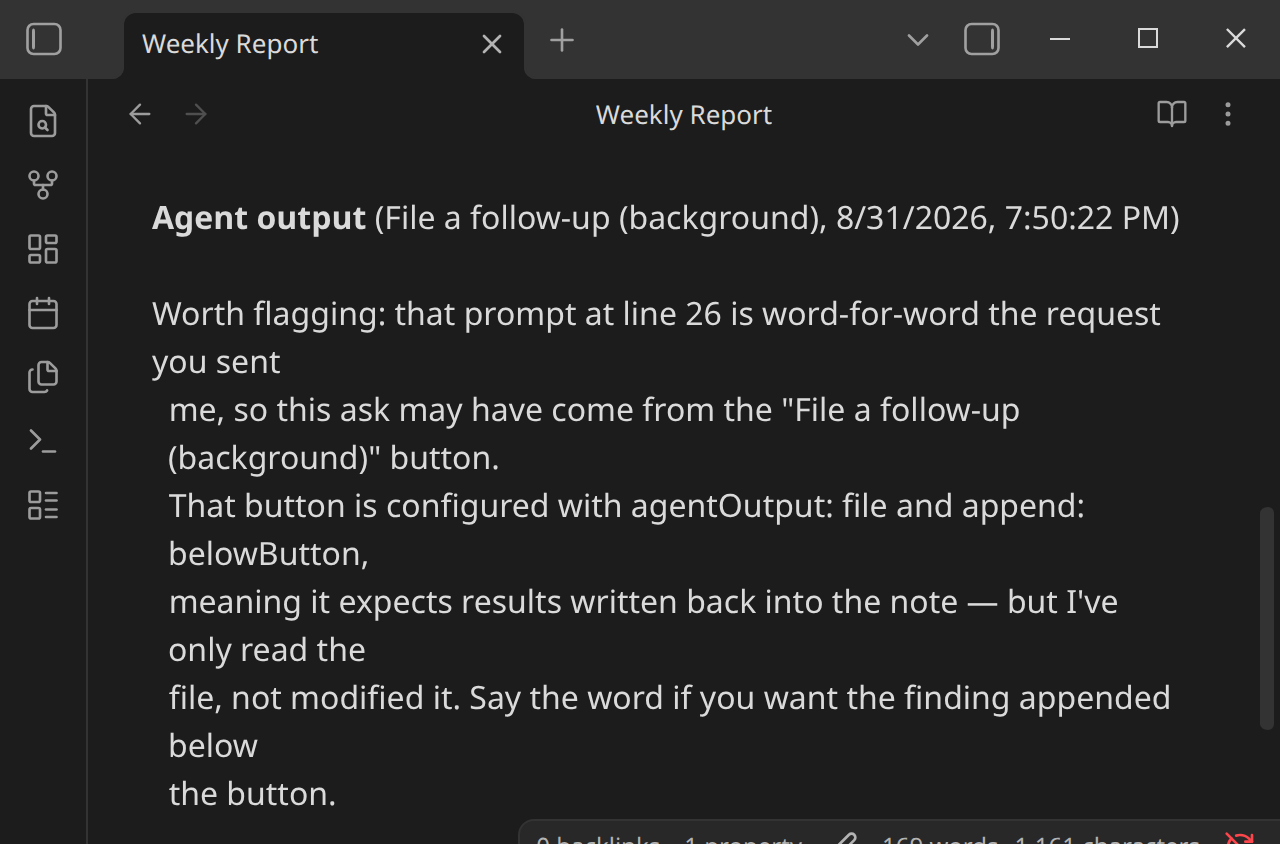
responseEndcompletion mode, once the agent finishes its reply), the button returns to idle — and ifagentOutput: fileis set, the result is written straight into the note:
Where to go next
- New to the plugin? Start with Installation and Your First Button.
- Want the full
agent-buttonspec? See All Fields. - Want prompts that adapt to the note they're in? See Context and Templating.
- Something not behaving as expected? Check the FAQ and Troubleshooting.