Settings Reference
Everything lives under Settings → Status Sets.
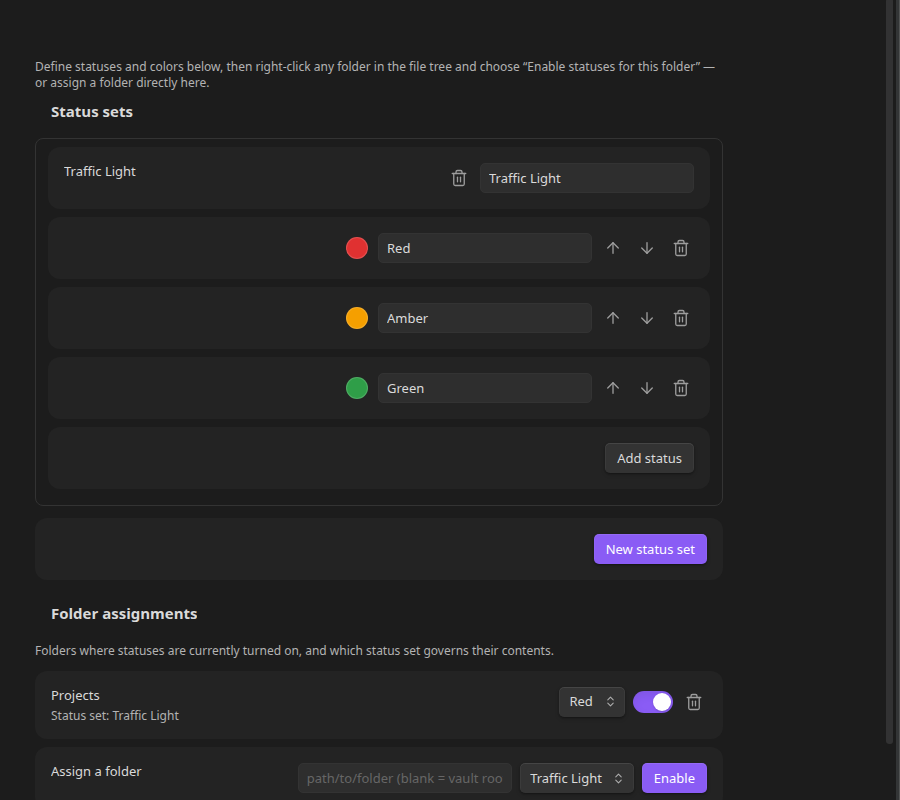
Status sets
- Each status set starts collapsed, showing just its name and status count — click the chevron to expand it.
- New status set — creates an empty (collapsed) status set; expand it and give it a name in the text field next to its heading.
- Each status row has a color swatch (click to open the color picker), a label text field, up/down arrows to reorder it within the set, and a "..." menu.
- The "..." menu offers Make default, Mark/Unmark as completed status, and Mark/Unmark as cancelled status. A status is either completed or cancelled, not both — marking one clears the other. The current default shows a Default status badge; completed statuses show a Completed badge, cancelled statuses a Cancelled badge.
- Add status — appends a new status (defaults to a plain gray) to the set. It's usable immediately everywhere the set is already assigned — no need to reopen or restart.
- The trash icon next to a status removes it; next to a status set's name, it deletes the whole set and disables statuses for any folder that was using it.
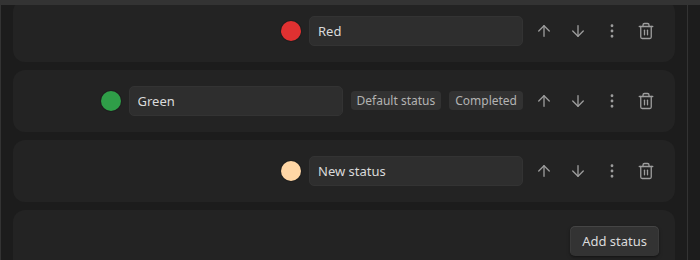
See Status Sets and Colors for the full behavior.
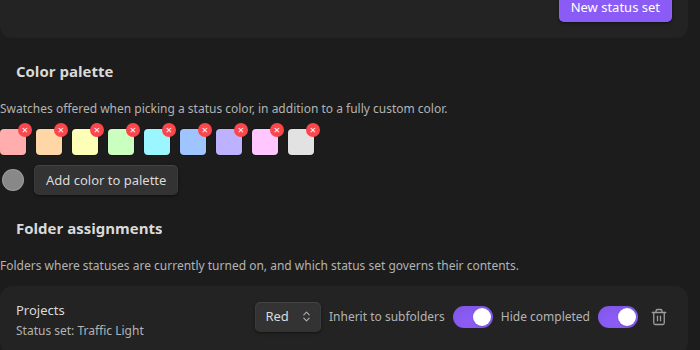
Color palette
A row of swatches offered whenever you pick a status color, in addition to a fully custom color. Each swatch (including the built-in defaults) has a small remove button. Add color to palette opens a native color picker to add a new one.
Design
- Glow — adds an optional neon glow around status dots in the file tree, colored to match each dot's status. Purely cosmetic: the dot itself stays exactly the same size, so it never grows taller than the text next to it.
Behaviour
- Open change status menu — how you click a status dot in the file tree to open the change-status popup: Left click (default), Right click, Long click (press and hold), or Double click. Whichever mode is set, clicking the file or folder's name still opens/expands it as normal — only the dot's own click is affected.
Folder assignments
Lists every folder that currently has statuses turned on. Like status sets, each folder assignment starts collapsed, showing just its path, which status set governs it, and a chevron to expand it — click through for:
- A dropdown to switch which status set governs the folder. Switching resets the folder's default status to the new set's own default; to change the default within the current set instead, right-click the folder in the file tree and choose File and Folder Status Options → Change default status for this folder.
- Inherit to subfolders — whether its configuration is inherited by subfolders that don't have their own (on by default).
- Hide — separate Completed and Cancelled toggles; hide items whose status is marked completed and/or cancelled from the tree entirely. The file tree's right-click menu (under File and Folder Status Options) has matching Show/Hide completed items and Show/Hide cancelled items entries.
- Apply statuses to — separate Files and Folders toggles, both on by default. Turn either off to stop showing/sorting-by status for that type under this folder. See Applying statuses to files vs. folders.
- Truncate statuses — a collapsible panel, one row per status in the folder's status set, each with a toggle and a text field for a custom summary label. See Truncating large groups.
The trash icon in the collapsed header disables statuses for that folder (assignments are preserved, not deleted).
Support
Buttons to report a bug (opens a pre-filled GitHub issue form), request a feature (opens the GitHub Discussions Ideas board), or buy the developer a coffee.
Assign a folder
A quick way to enable statuses for a folder without leaving Settings or hunting for it in the file tree:
- Path field — start typing and pick a suggested vault folder path, or leave it blank for the vault root.
- Status set dropdown — which set to use.
- Enable — turns statuses on for that folder, using the status set's default status.
See Assigning Folders and Defaults for everything this does under the hood.