Status Sets and Colors
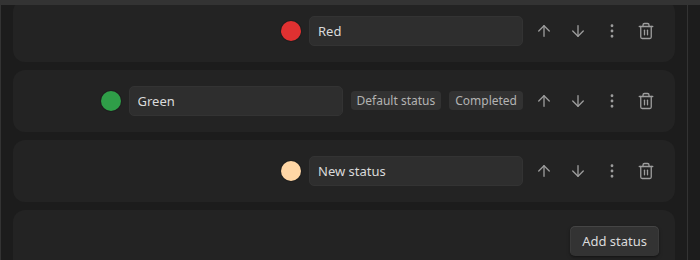
A status set is a named, ordered list of statuses. Each status has:
- A label — the text shown in the change-status popup and as the dot's tooltip.
- A color — pick from a curated pastel palette, or use a fully custom color (see Colors and the palette below).
- Optionally, a completed or cancelled flag (see Completed statuses and Cancelled statuses below) — a status is one or the other, not both.
You can have as many status sets as you want, and reuse the same one across multiple folders, or give different folders their own. A Client Work folder might use Red / Amber / Green, while a Reading List folder next to it uses To Read / Reading / Done — they don't have to match.
Order matters
The order statuses appear in within a set is also the sort rank used when a folder groups its contents by status (see Sorting and Grouping) — the first status sorts first, the last sorts last. Use the up/down arrows next to each status in Settings to reorder them.
A common pattern is ordering from "not started" to "done", so a folder's contents naturally read left-to-right, top-to-bottom as a progression.
Default status
Every status set has one status marked Default status — the one a folder starts new items with when statuses are first turned on for it (see Assigning Folders and Defaults). It starts out as whichever status you add first, and stays there until you change it — reordering statuses doesn't move it.
To change it, click the "..." menu next to any status and choose Make default.
Completed statuses
Click a status's "..." menu and choose Mark as completed status to flag it as "done" for that set — a set can have more than one completed status (e.g. both Done and Merged). Completed statuses show a Completed badge next to them in Settings.
Completed statuses are what the Completed toggle under Hide uses to decide what to hide from the tree per folder.
Cancelled statuses
Click a status's "..." menu and choose Mark as cancelled status to flag it as abandoned/won't-do for that set — a set can have more than one cancelled status (e.g. both Cancelled and Duplicate). Cancelled statuses show a Cancelled badge next to them in Settings. Marking a status cancelled clears its completed flag, and vice versa — a status is one or the other, not both.
Cancelled statuses are what the Cancelled toggle under Hide uses to decide what to hide from the tree per folder.
Editing statuses
From Settings → Status Sets, each status set shows every status as a row with its color swatch and label, editable in place:
- Add status appends a new one to the end.
- The up/down arrows reorder a status within its set.
- The "..." menu offers Make default, Mark/Unmark as completed status, and Mark/Unmark as cancelled status.
- The trash icon removes a status. Any folder defaulting to a removed status falls back to whatever is now first in the set; if the removed status was the set's default, the new first status becomes the default.
- Renaming a status or changing its color updates every dot currently showing that status immediately.
Colors and the palette
Click a status's color swatch to open the color picker: a grid of pastel swatches for quick picking, plus a native color input below it for anything fully custom. Any custom color you pick can be saved back into the palette with Save to palette, so it shows up as a quick-pick swatch next time.
The palette itself — including the built-in defaults — is managed in its own Color palette section further down in Settings, where each swatch has a small remove button.
Deleting a status set
Deleting a status set (via the trash icon next to its name) also disables statuses for any folder that was using it — those folders stop showing dots, but existing per-item assignments aren't deleted, so assigning a new status set to the same folder later doesn't start you from scratch.
Next
See Assigning Folders and Defaults for how a status set actually gets applied to your file tree.